
Studio day
Your studio day, at a glance and handled at the front desk
The Today overview shows what is urgent and how the day is going. The reception screen gives your team check-in, walk-in and sales in one place.
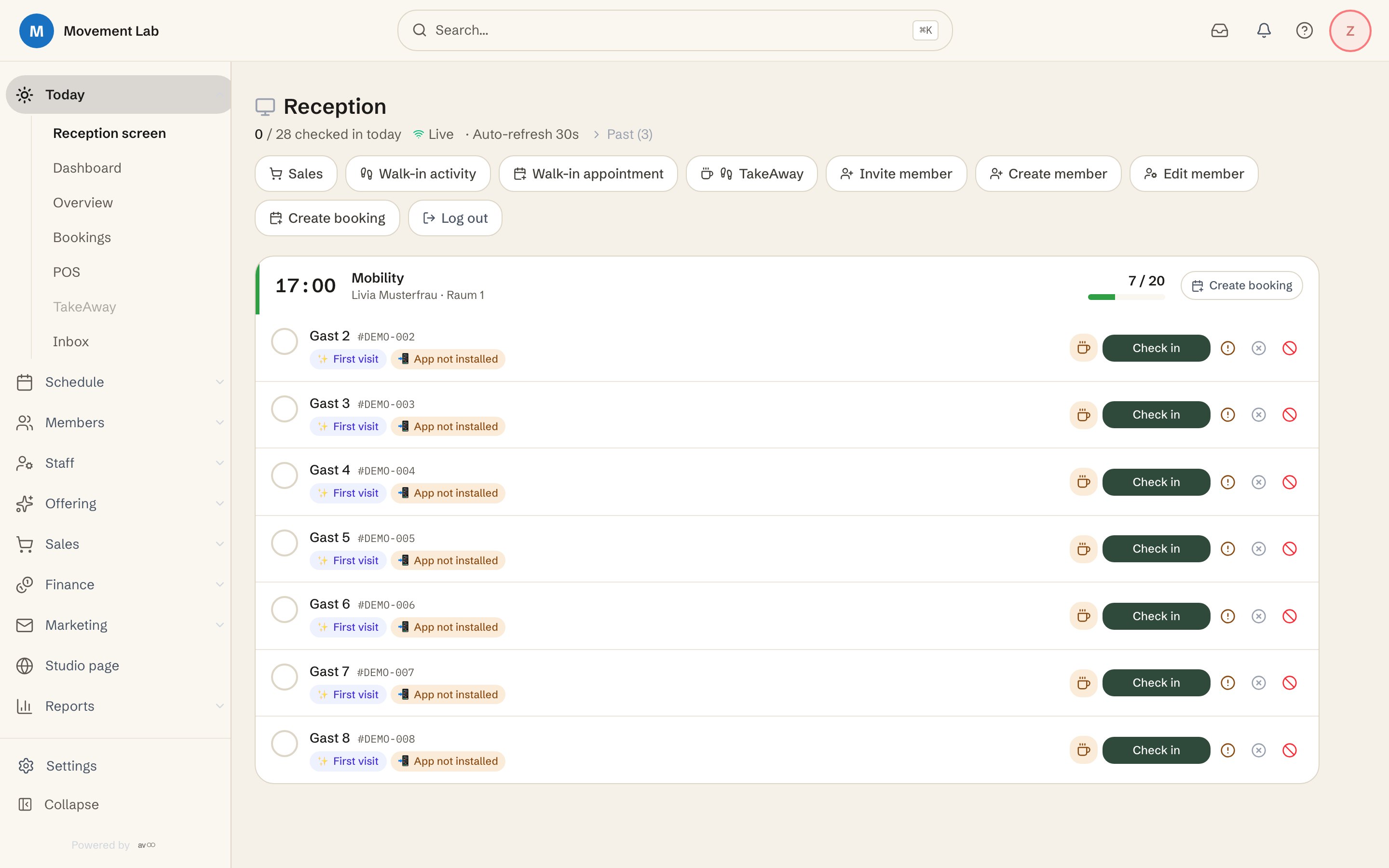
What the studio day takes off your hands
You no longer search five menus in the morning, and your team works at the front desk in a single view.
You see what counts today
Passes about to expire, open orders, open substitutions and spots that have opened up are listed as action items at the top. When nothing is urgent, it says everything is in the green.
The front desk needs no second list
The reception screen shows the day’s classes with the booked guests. One click checks someone in, and the counter shows how many are already there.
Spontaneous guests do not get lost
You start walk-in, sales and TakeAway right at the front desk, just like creating new members or a booking.
All features for the studio day
This is what the Today overview and the reception screen contain, and every feature is included in the base licence.
Action items
Passes about to expire, orders to process, open substitutions, open TakeAway orders, pending profile approvals and spots that have opened up on the waitlist.
Attendance of the day
Per class checked in against booked, plus how many of today’s classes have already taken place.
Revenue by channel
Online, at the checkout, through TakeAway and by invoice, for today, the current week, the month or the year, compared with the period before.
Waitlist at a glance
Who is waiting in which class and where someone can move up.
Reception screen
A page of its own without a sidebar for the front desk: the day’s classes with time, instructor, room and attendance, and the booked guests below. It refreshes itself and shows whether it is live or offline.
Check-in with one click
The front desk checks people in, and the list records whether someone checked in at the desk, on their own through the app or through the studio QR code. Cancel and no-show are at hand too.
Notes on the guest
First visit, birthday, app and push status, current pass, open payment and pre-ordered TakeAway appear at the name. You choose what is shown.
Actions at the front desk
Sales, walk-in activity, walk-in appointment, TakeAway, invite, create or edit a member and create a booking, with the buttons you switch on.
Shift change by PIN
Staff take turns at the shared screen with their personal PIN instead of logging in again.
How a day at the studio runs
From a look at the Today overview to the evening, in five steps.
You open the Today overview.
The action items show you what has to be dealt with first today, for example passes about to expire or open substitutions.
The team opens the reception screen.
The day’s classes are ready with time, instructor, room and the booked guests, and the screen refreshes itself.
Guests arrive and are checked in.
One click at the name checks them in, or the member checks in on their own through the app or studio QR code, and the list shows it right away.
Spontaneous things happen right at the front desk.
Walk-in guests, a sale, a TakeAway order or a new booking start from the buttons at the top, without leaving the view.
The shift changes and the day is reviewed.
The next team member logs in by PIN, and you see the day’s attendance and revenue in the Today overview.
Frequently asked questions about the studio day
What does the Today overview show?
- It shows the day’s action items, the attendance of the classes, revenue by channel and the waitlist. When nothing is urgent, it says everything is in the green.
What is the reception screen?
- A page of its own without a sidebar for the person at the front desk. It shows the day’s classes with the booked guests and offers check-in, walk-in, sales and TakeAway in one place.
Does the team have to log in again for the front desk?
- No. Staff take turns at the shared screen with their personal PIN. You set the PINs per person in the settings.
Can I decide what appears at the front desk?
- Yes. You choose which action buttons are visible and which notes appear at the guest, for example first visit, birthday, app status or the current pass.
How does check-in work at the front desk?
- With one click at the guest’s name. If a member checks in on their own through the app or studio QR code, the list shows that too and records who checked them in.
Can I sell and create members at the front desk?
- Yes. Sales, walk-in, TakeAway, invite, create or edit a member and create a booking all start right at the reception screen.
Does the screen refresh by itself?
- Yes. It refreshes automatically and shows whether it is live or offline.
Bring calm to the front desk
Set up your studio yourself and open the reception screen, without a sales call.